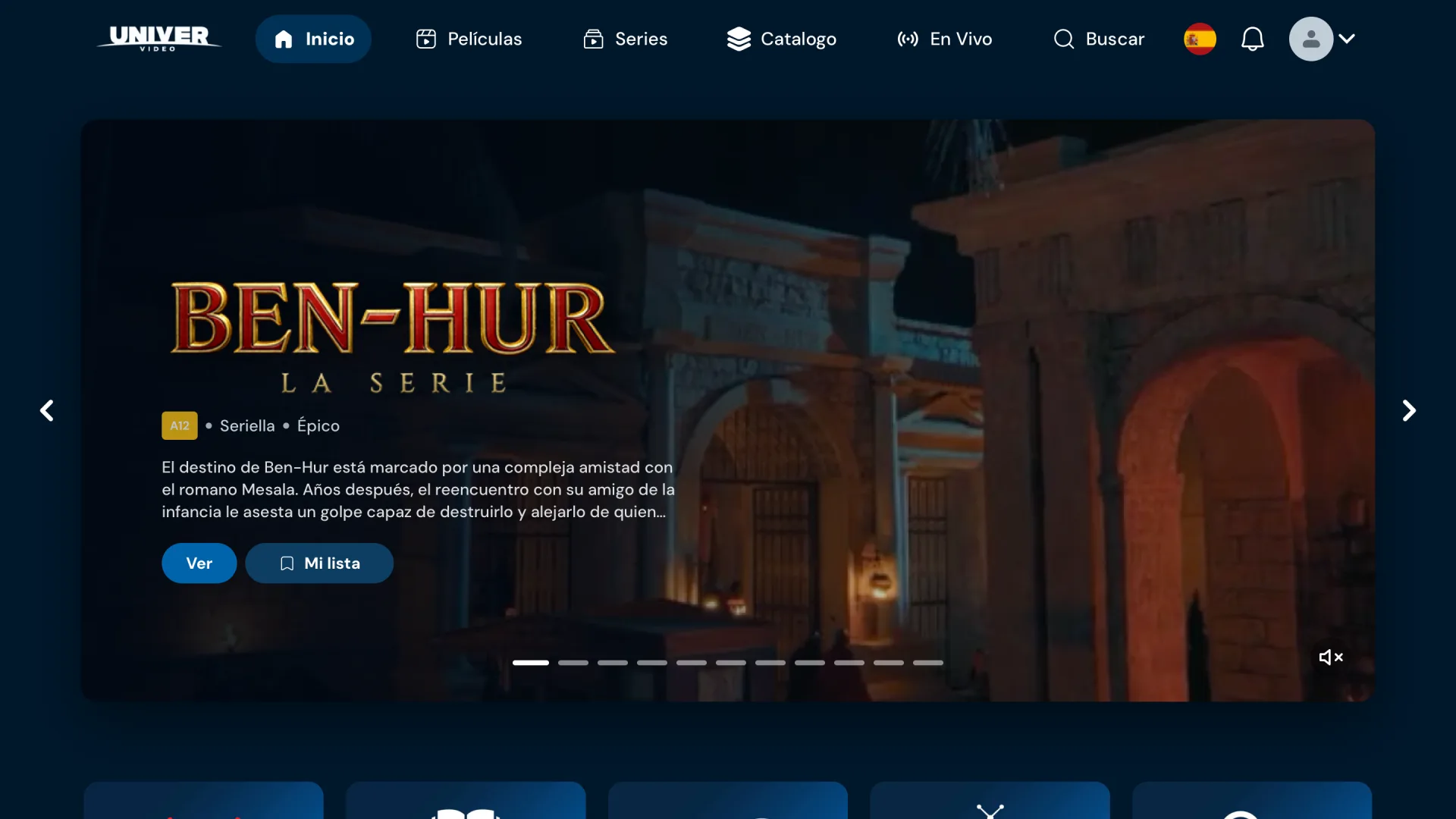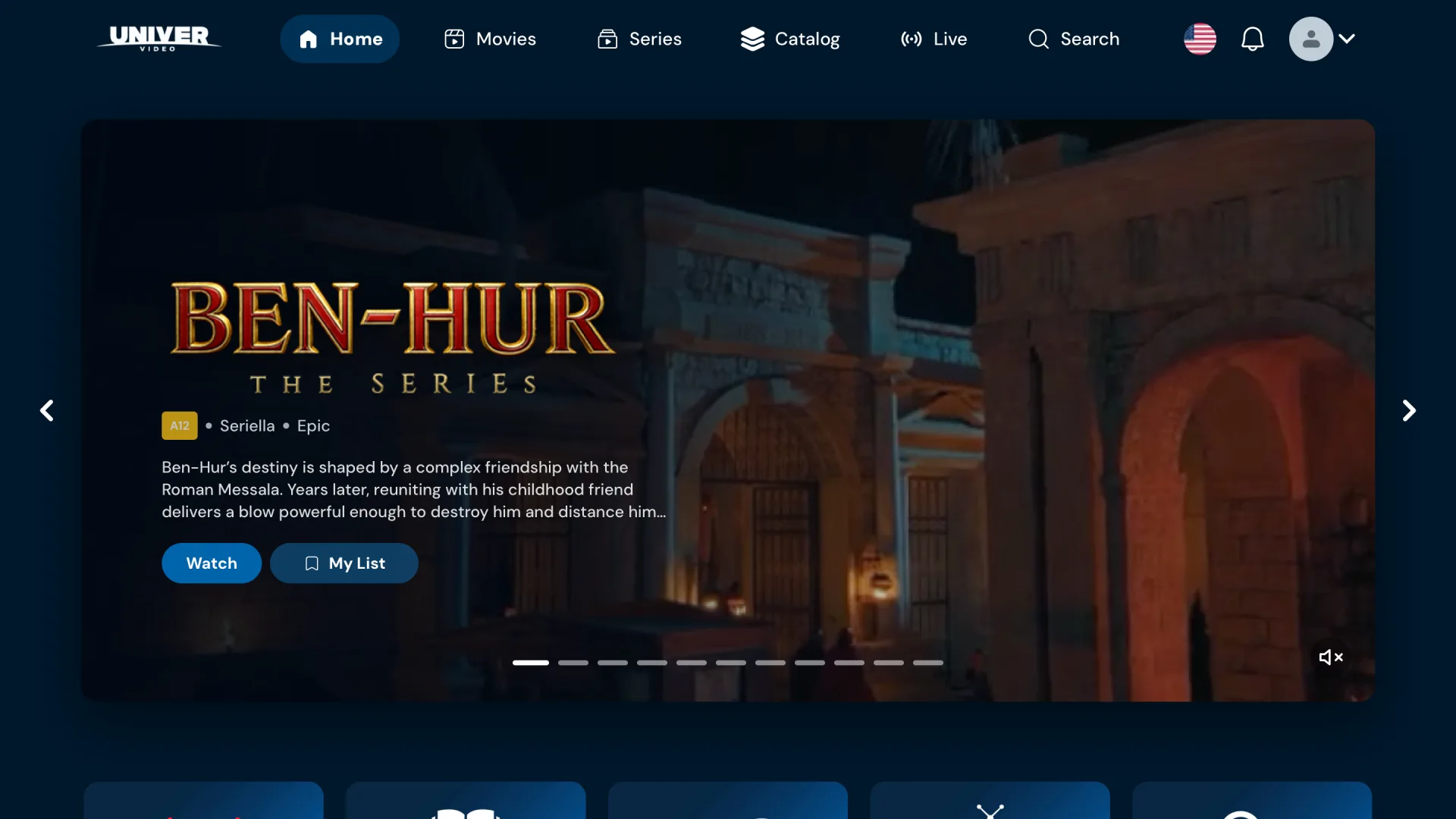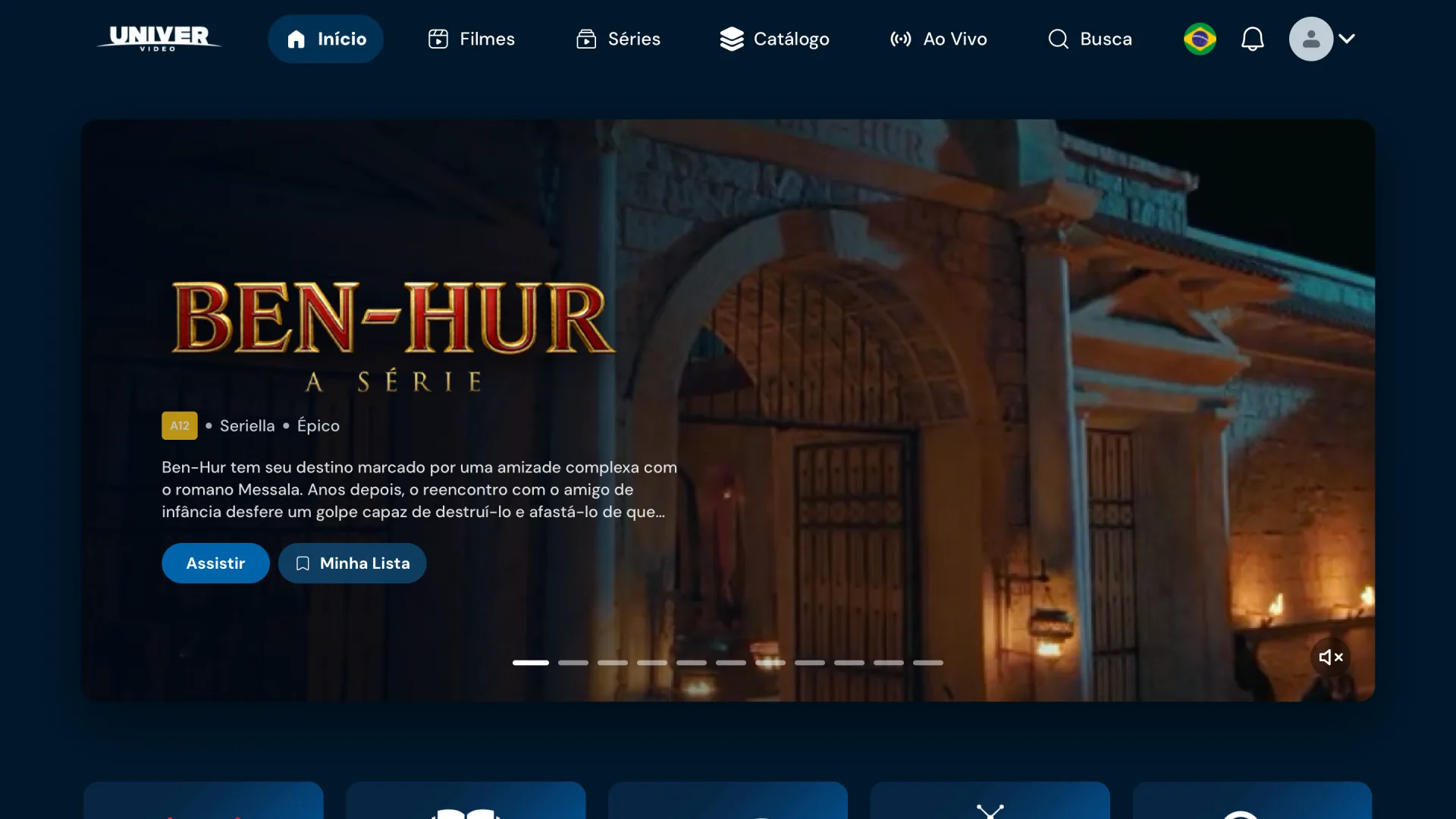
O Univer Vídeo está de cara nova, e o aplicativo novo está chegando às TVs Samsung conforme o ano do modelo. Aqui você confere se a sua TV já recebeu, como instalar e o que fazer se o app novo ainda não apareceu.
Quais TVs Samsung já têm o app novo
A liberação segue o ano de fabricação da TV. Se não souber o ano, cole o modelo na busca do topo.
- 2026DisponívelTizen 10.0
- 2025DisponívelTizen 9.0 · Tizen 10.0
- 2024DisponívelTizen 8.0 · Tizen 9.0 · Tizen 10.0Alguns modelos com Tizen 10: em breve
- 2023DisponívelTizen 7.0 · Tizen 9.0
- 2022DisponívelTizen 6.5
- 2021DisponívelTizen 6.0
- 2020DisponívelTizen 5.5
- 2019DisponívelTizen 5.0
TVs Samsung de 2018 ou antes: a Samsung não permite mais publicar aplicativos para esses modelos, por isso o Univer Vídeo não está disponível neles. Para assistir na TV, use um Fire TV Stick, um Roku, uma Apple TV ou outro aparelho compatível conectado à TV.
Ver todos os grupos de modelos (66)
| Grupo de modelos | Sistema | Situação |
|---|---|---|
| 26TV_STANDARD1 | Tizen 10.0 | Disponível |
| 26TV_PREMIUM5 | Tizen 10.0 | Disponível |
| 26TV_PREMIUM2 | Tizen 10.0 | Disponível |
| 26TV_PREMIUM1 | Tizen 10.0 | Disponível |
| 26TV_BASIC5 | Tizen 10.0 | Disponível |
| 26TV_BASIC2 | Tizen 10.0 | Disponível |
| 25TV_STANDARD1 | Tizen 10.0 | Disponível |
| 25TV_STANDARD1 | Tizen 9.0 | Disponível |
| 25TV_PREMIUM4 | Tizen 10.0 | Disponível |
| 25TV_PREMIUM4 | Tizen 9.0 | Disponível |
| 25TV_PREMIUM3 | Tizen 10.0 | Disponível |
| 25TV_PREMIUM3 | Tizen 9.0 | Disponível |
| 25TV_PREMIUM2 | Tizen 10.0 | Disponível |
| 25TV_PREMIUM2 | Tizen 9.0 | Disponível |
| 25TV_PREMIUM1 | Tizen 10.0 | Disponível |
| 25TV_PREMIUM1 | Tizen 9.0 | Disponível |
| 25TV_BASIC3 | Tizen 10.0 | Disponível |
| 25TV_BASIC2 | Tizen 9.0 | Disponível |
| 25TV_BASIC1 | Tizen 10.0 | Disponível |
| 25TV_BASIC1 | Tizen 9.0 | Disponível |
| 24TV_STANDARD3 | Tizen 10.0 | Em breve |
| 24TV_STANDARD3 | Tizen 9.0 | Disponível |
| 24TV_STANDARD2 | Tizen 10.0 | Em breve |
| 24TV_STANDARD2 | Tizen 9.0 | Disponível |
| 24TV_STANDARD1 | Tizen 9.0 | Disponível |
| 24TV_PREMIUM6 | Tizen 9.0 | Disponível |
| 24TV_PREMIUM5 | Tizen 9.0 | Disponível |
| 24TV_PREMIUM5_LIC | Tizen 8.0 | Disponível |
| 24TV_PREMIUM4 | Tizen 9.0 | Disponível |
| 24TV_PREMIUM2 | Tizen 9.0 | Disponível |
| 24TV_PREMIUM1 | Tizen 9.0 | Disponível |
| 24TV_BASIC4 | Tizen 8.0 | Disponível |
| 24TV_BASIC3 | Tizen 9.0 | Disponível |
| 24TV_BASIC2 | Tizen 9.0 | Disponível |
| 24TV_BASIC2_LIC2 | Tizen 8.0 | Disponível |
| 24TV_BASIC2_LIC | Tizen 8.0 | Disponível |
| 23TV_STANDARD1 | Tizen 9.0 | Disponível |
| 23TV_PREMIUM5 | Tizen 9.0 | Disponível |
| 23TV_PREMIUM4 | Tizen 9.0 | Disponível |
| 23TV_PREMIUM3 | Tizen 9.0 | Disponível |
| 23TV_PREMIUM2 | Tizen 9.0 | Disponível |
| 23TV_PREMIUM1 | Tizen 9.0 | Disponível |
| 23TV_BASIC3 | Tizen 9.0 | Disponível |
| 23TV_BASIC2 | Tizen 9.0 | Disponível |
| 23TV_BASIC1 | Tizen 9.0 | Disponível |
| 23TV_BASIC1_LIC2 | Tizen 7.0 | Disponível |
| 23TV_BASIC1_LIC | Tizen 7.0 | Disponível |
| 22TV_STANDARD1 | Tizen 6.5 | Disponível |
| 22TV_PREMIUM5 | Tizen 6.5 | Disponível |
| 22TV_PREMIUM4 | Tizen 6.5 | Disponível |
| 22TV_PREMIUM3 | Tizen 6.5 | Disponível |
| 22TV_PREMIUM2 | Tizen 6.5 | Disponível |
| 22TV_PREMIUM1 | Tizen 6.5 | Disponível |
| 22TV_BASIC3 | Tizen 6.5 | Disponível |
| 22TV_BASIC1 | Tizen 6.5 | Disponível |
| 21TV_STANDARD1 | Tizen 6.0 | Disponível |
| 21TV_PREMIUM3 | Tizen 6.0 | Disponível |
| 21TV_PREMIUM2 | Tizen 6.0 | Disponível |
| 21TV_PREMIUM1 | Tizen 6.0 | Disponível |
| 21TV_BASIC1 | Tizen 6.0 | Disponível |
| 20TV_STANDARD | Tizen 5.5 | Disponível |
| 20TV_PREMIUM | Tizen 5.5 | Disponível |
| 20TV_BASIC2 | Tizen 5.5 | Disponível |
| 20TV_BASIC1 | Tizen 5.5 | Disponível |
| 19TV_STANDARD | Tizen 5.0 | Disponível |
| 19TV_PREMIUM | Tizen 5.0 | Disponível |
Onde encontro o modelo da minha TV?
- No controle remoto, aperte Home (o botão da casinha) e abra Configurações.
- Entre em Suporte e depois em Sobre a TV.
- O código aparece em Código do Modelo, por exemplo UN55RU7100GXZD.
O mesmo código também está na etiqueta atrás da TV.
Como instalar o Univer Vídeo
- No controle remoto, aperte Home e vá até Apps.
- Selecione a lupa no canto superior direito e digite Univer.
- Escolha Univer Vídeo e selecione Instalar.
- Quando terminar, selecione Abrir e entre com a sua conta.
Se aparecer Abrir em vez de Instalar, o app já está na sua TV: siga para a atualização.
Já tenho o app: como atualizar para o novo
- Ligue a atualização automática dos appsAperte Home, vá até Apps, selecione Configurações no canto superior direito e ative a Atualização Automática. Assim o Univer Vídeo novo chega sozinho quando for liberado para a sua TV.
- Atualize o sistema da TVAbra Configurações › Todas as Configurações, entre em Suporte (em alguns modelos, Assistência) › Atualização de Software e selecione Atualizar agora.
- Reinicie a TVDesligue e ligue a TV de novo. Depois abra o Univer Vídeo.
O app novo ainda não apareceu?
- Confira na busca do topo se a sua TV já recebeu o app novo.
- Atualize o sistema da TV e o aplicativo, como mostrado acima, e reinicie a TV.
- Se ainda assim não mudar, desinstale o Univer Vídeo e instale de novo pela loja de aplicativos da TV.
- Enquanto o app novo não chega, você pode assistir pelo celular ou pelo computador em univervideo.com.